
Overlays
Track Maps
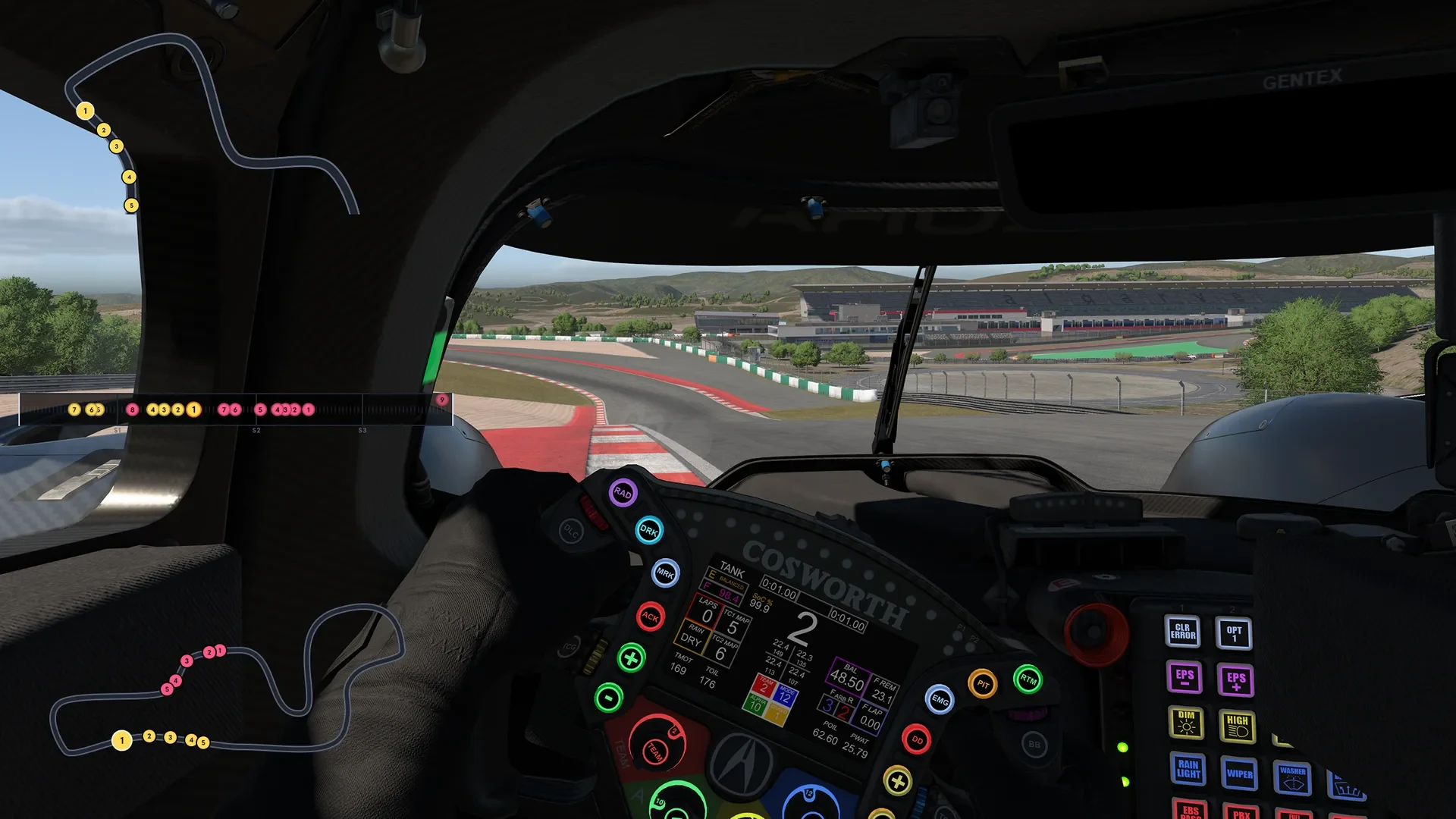
The circuit and every car on it, drawn over your sim in the shape that fits your screen: a Dynamic map that follows you, a Static map of the whole lap, or a Linear map that lays the lap out in a straight line.
The circuit, three ways
Track Maps puts the whole field on your screen. Every car is a dot in its class colour with its place in class written on it, and yours stands out. Choose the shape that suits the space you have: Dynamic follows your car and pulls back as the speed rises, Static shows the whole track, and Linear draws the lap as one straight line with its sectors marked.
- Map types
- 3Map typesDynamic, Static and Linear
- Map Zoom as standard
- 50Map Zoom as standardFrom 0 to 100 on the Dynamic map
- Largest size
- 200%Largest sizeFrom 50 per cent, in Quick setup
- Screen positions
- 9Screen positionsTop right as standard, or drag it with Fine tune
 and above
Track Maps, with Team Driver.
Overlays, Track Maps among them, come with Team Driver and above.
Why Track Maps wins
The right map for every sim
Map Type and Map Zoom are saved in presets, and a preset can belong to a game. Keep the Dynamic map for sprint races in one sim and the Linear map for multiclass endurance in another: when a game starts, the plugin loads that game's preset by itself, and an Any game preset covers the rest.
The field, on the move
One real sim screen, with the map drawn over the game and a three class field racing on it. Each chapter is one thing the map does: pick its options and the screen shows them at once.
Map Type
Three maps, one for every screen
Map Type is the first setting on the plugin's Virtual Map page, three picture tiles. Dynamic follows your car and can be zoomed, Static shows the whole track, and Linear draws it as a straight line. Pick one and the map over the sim changes at once.
Map Type
- Dynamic (Default): your car in the middle, the track moving round it
- Static: the whole lap, your car larger and ringed in white
- Linear: start to finish as a line, your car ringed in orange
- Kept in presets, so each game can have its own
Map Zoom
See further, the faster you go
From 60 km/h the Dynamic map pulls back as your speed rises, so you see further up the road when things happen faster, and it closes in again for the slow corners. Map Zoom sets how far it pulls back: the higher the number, the more area you can see.
- From 0 to 100, 50 as standard
- Dynamic map only: greyed out on Static and Linear
- Kept in presets with Map Type
Multiclass
Every class in its own colour
In a multiclass race the map is only useful if you can tell the classes apart. Every car on it wears the colour the sim gives its class, with its place in that class written on the dot, so the GTP coming up behind and the GTD you are about to lap read differently at a glance, and your own car is ringed so you never lose it.
- Class colours on all three map types
- The place in class on every dot
- Your car ringed on every type, and larger on the two circuit maps
- The start and finish line in red on the Dynamic and Static maps
Linear
The lap, as a straight line
Linear lays the lap out from the start to the finish, with the sectors marked along it, and puts every car at its share of the lap. A circuit outline needs space to be legible; a straight line showing who is where relative to you does not, and for judging a gap it is arguably clearer anyway.
- White lines at the start and the finish, S1 to S3 at the sectors
- Your car ringed in orange
- A car in the pit lane rides above the line, dimmed
- Worth trying on a narrow screen
Your screen
Tucked into a corner, or front and centre
Quick setup puts the map at the top right of the screen as standard. Pick any of nine positions and a size from 50 to 200 per cent, or drag it exactly where you want it with Fine tune, then let it start with the game every time.
Position
- Top right as standard, or any of nine positions
- Fine tune: drag and resize it on screen, in SimHub's own edit mode
- Start with the game, and keep it in menus and pauses if you like
- On a triple screen, the centre screen or the full width
One screen
The whole race, on one screen
Track Maps is one of five overlays built to share a screen without crowding it. Run the map beside the Leaderboard, the Virtual Flags, the Virtual Brows and the Virtual Box, and a single monitor carries everything a dashboard, a flag box and brow lights would, all on the same live TrackThirtyTwo telemetry.
- Five overlays, one Quick setup, one SHOW OVERLAYS button
- The same field data as the Leaderboard and the Virtual Box
- Class data from TrackThirtyTwo ONE, falling back to SimHub's own
The map, wherever you race
The Dynamic and Static maps are SimHub's own maps in the overlay's style; the Linear map is drawn by the overlay from the field it reads.
Map types
- Dynamic (Default): follows your car and can be zoomed
- Static: shows the whole track
- Linear: draws it as a straight line
Screens
- A single monitor or an ultrawide
- A triple screen: the centre screen or the full width
- A second display
Alongside
- The other four TrackThirtyTwo overlays
- A map screen in the Virtual Box as well
- Your dashboards and LED Profiles, on the same telemetry
Track Maps, answered
What are the Track Maps settings?
On the plugin's Virtual Map page, Map Type comes first: three picture tiles, Dynamic (Default), Static and Linear. The plugin sums them up as "Dynamic follows your car and can be zoomed; Static shows the whole track; Linear draws it as a straight line." Map Zoom, underneath, greys out on the other two because it has nothing to do there.
What does Map Zoom do?
It adjusts the zoom level on the Dynamic map. The higher the number, the more area you can see. It runs from 0 to 100 and starts at 50, halfway along, and it only applies to the Dynamic map.
Which map type suits a small screen?
Linear is worth trying on a narrow screen. A circuit outline needs space to be legible; a straight line showing who is where relative to you does not, and for judging a gap it is arguably clearer anyway.
How do the colours work in a multiclass race?
Every car is drawn in its class colour, with its place in its class written on its dot, and your own car is ringed, and drawn larger on the Dynamic and Static maps, so it is easy to find.
Where does the map go on my screen?
Quick setup on the Overlays hub puts it at the top right as standard. Each overlay gets a Position, one of nine anchors from Top left to Bottom right, and a Size from 50 to 200 per cent. Fine tune positions opens SimHub's on screen edit mode so you can drag and resize it; press it again to finish.
Which membership do I need?
Team Driver or above. Team Driver adds the rest of the lighting plus the on screen panels: Overlays.
Ready for Track Maps?
Track Maps unlocks with Team Driver and above, and runs from the free TrackThirtyTwo SimHub plugin.