
Overlays
Virtual Box
The iRacing black box and the Co-Pilot control panel rolled into one overlay: sixteen screens of timing, fuel, tyres, pit service, damage, traffic and driving data, drawn over your sim from live TrackThirtyTwo telemetry.
Sixteen screens. One panel.
Built for racing on a single screen with no separate dashboard. The Virtual Box sits over your sim and keeps lap times, fuel, tyres, damage, the cars around you and your own inputs one tab apart, each screen readable at a glance and quick to work without leaving the racing line.
- Screens
- 16ScreensLap Time to Track Rivals, a tab each
- Laps of history
- 7Laps of historyTime, delta and fuel for each one
- Damage alert
- 4 sDamage alertThe Damage screen comes up on new damage
- Screen positions
- 9Screen positionsSized from 50 to 200 % in Quick setup
 and above
Virtual Box, with Team Driver.
Overlays come with Team Driver and above, all five of them: the Virtual Box, Leaderboard, Virtual Brows, Virtual Flags and Track Maps.
Why Virtual Box wins
It reads the sim you are in
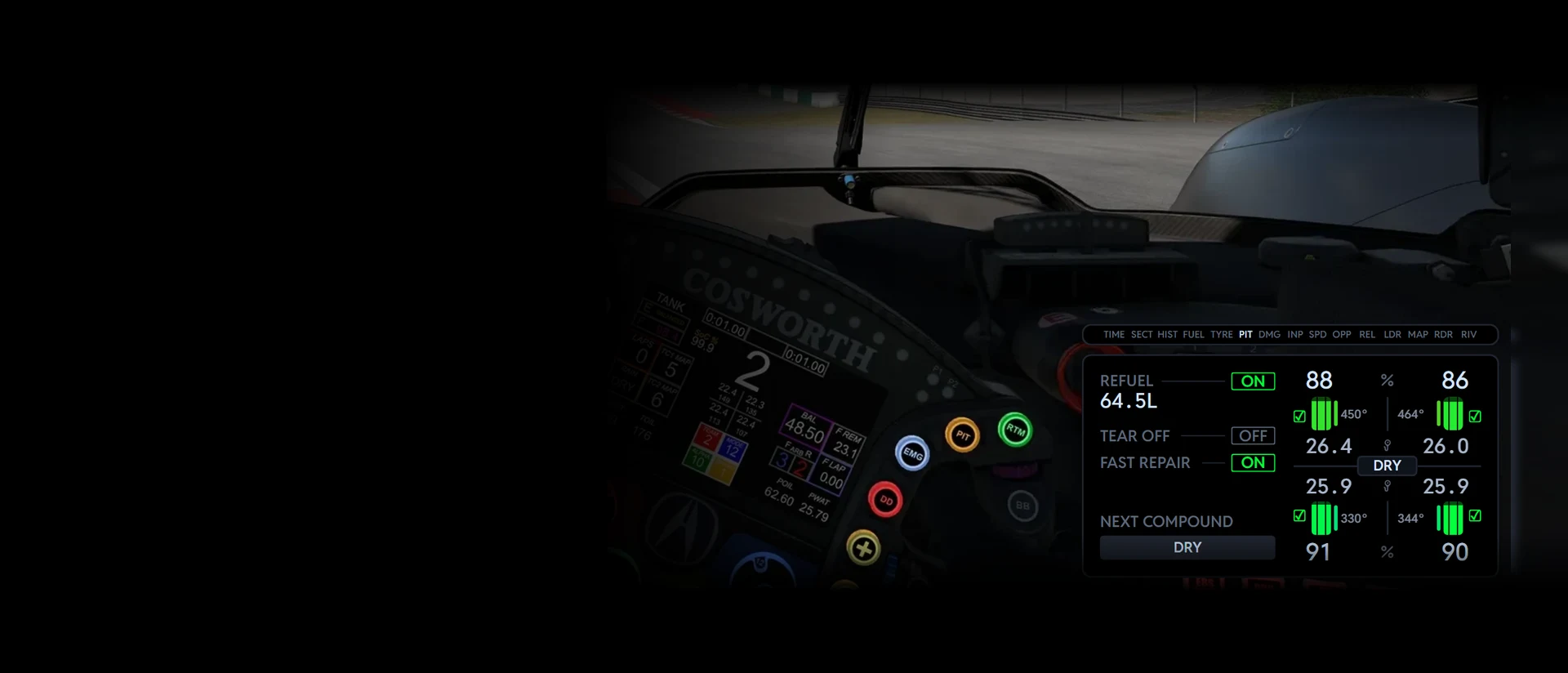
Start iRacing and PIT joins the tabs, showing the pit menu you have set. Start Le Mans Ultimate and NRG takes its place, with your virtual energy laps beside your fuel laps. Damage detail, compounds and brake data follow what each sim gives, and a value the sim does not give is shown as a dash or left out, never made up.
Every screen, one at a time
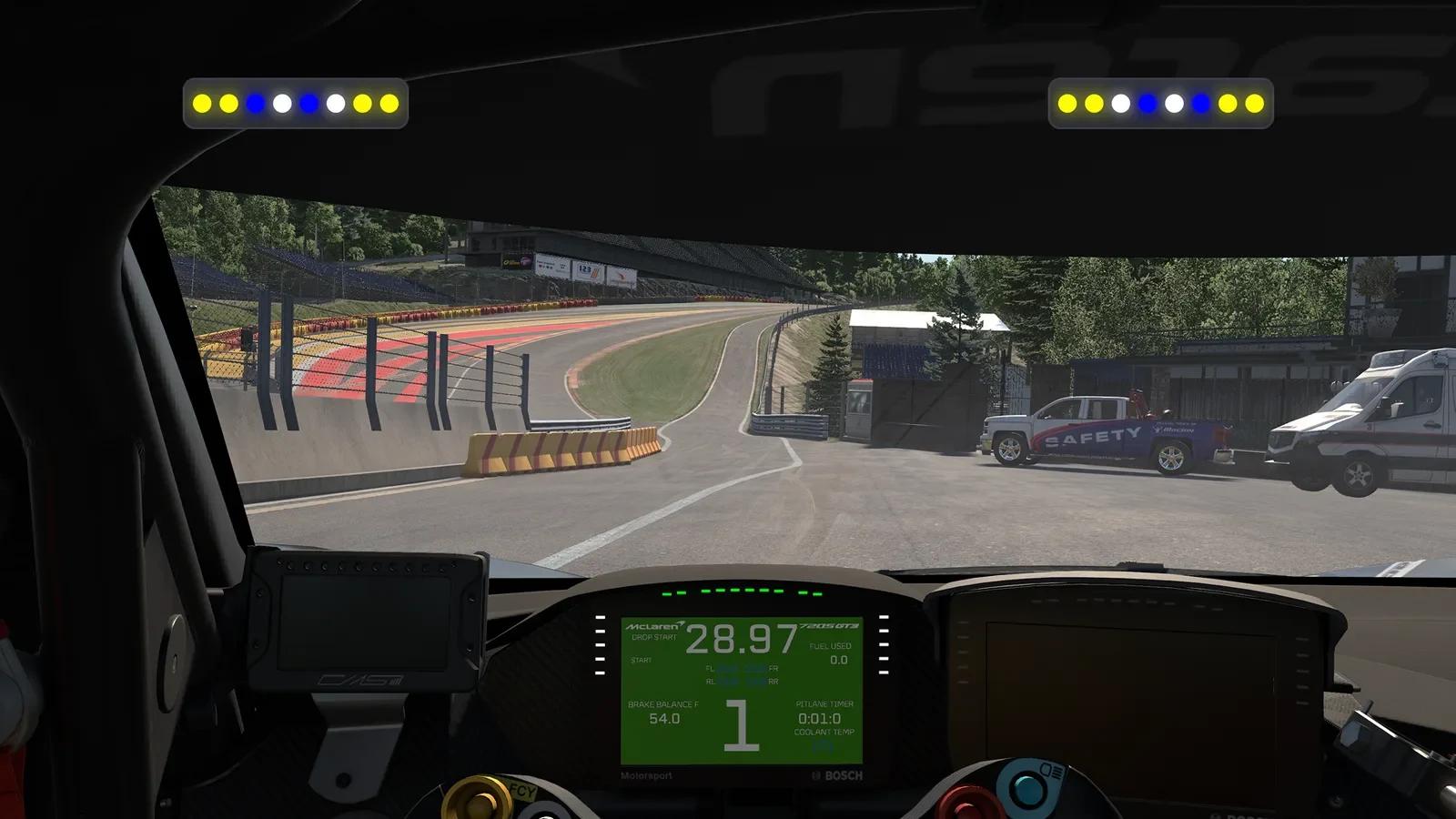
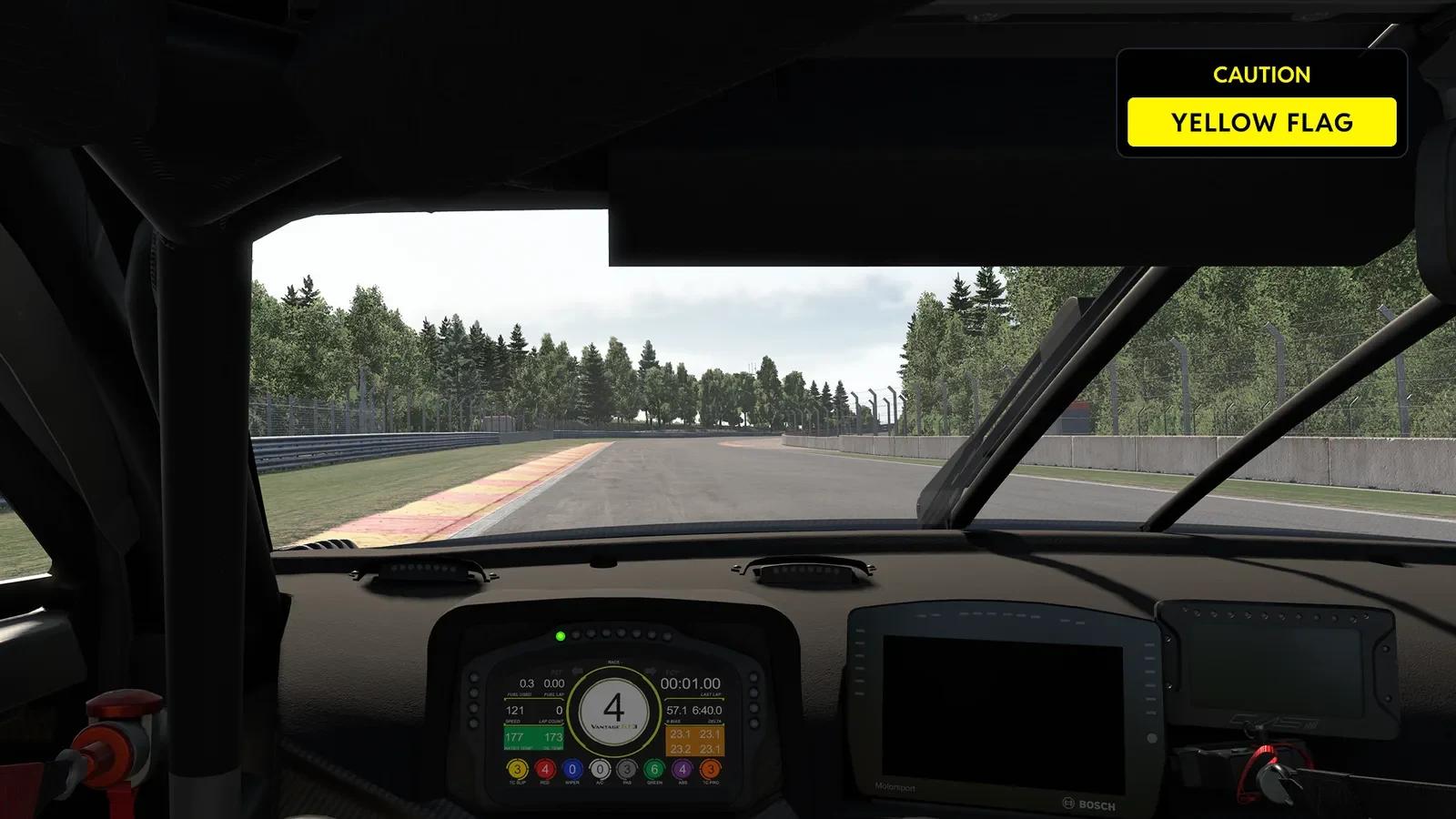
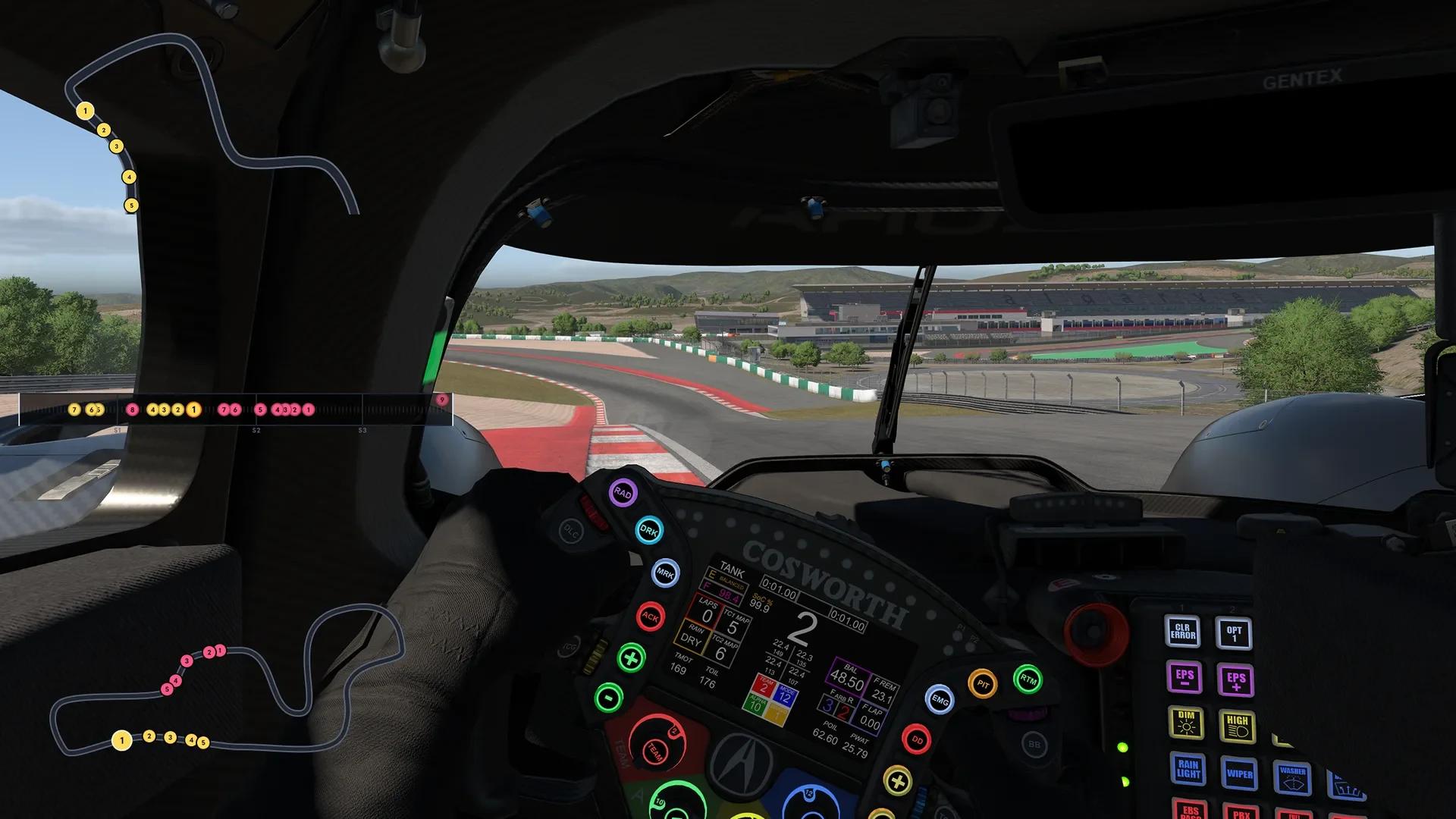
The Virtual Box over a real cockpit, every screen running with the car. Each chapter is one job the box does: pick a screen or an option and the box shows it at once.
Timing
Lap times in FIA colours
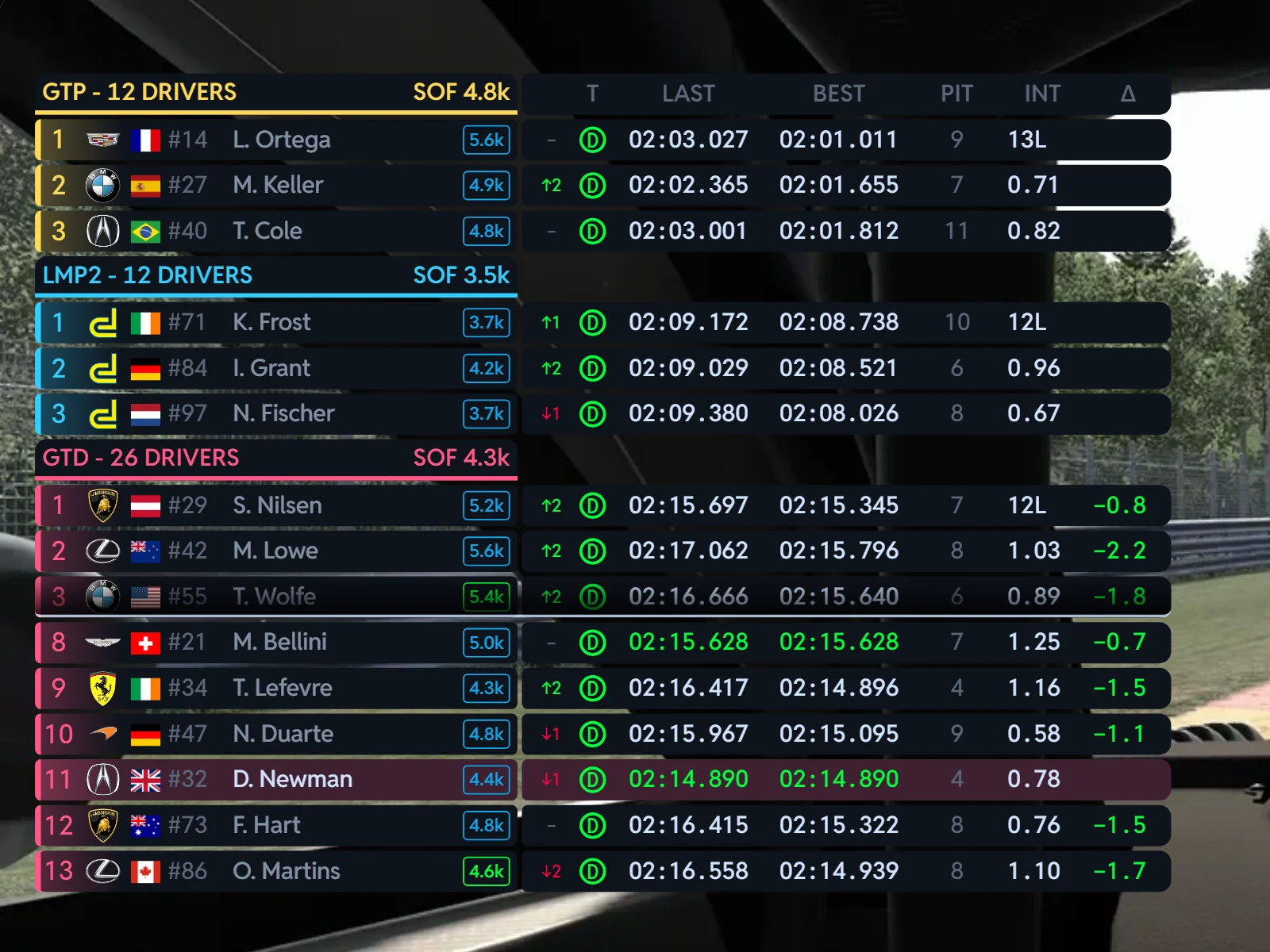
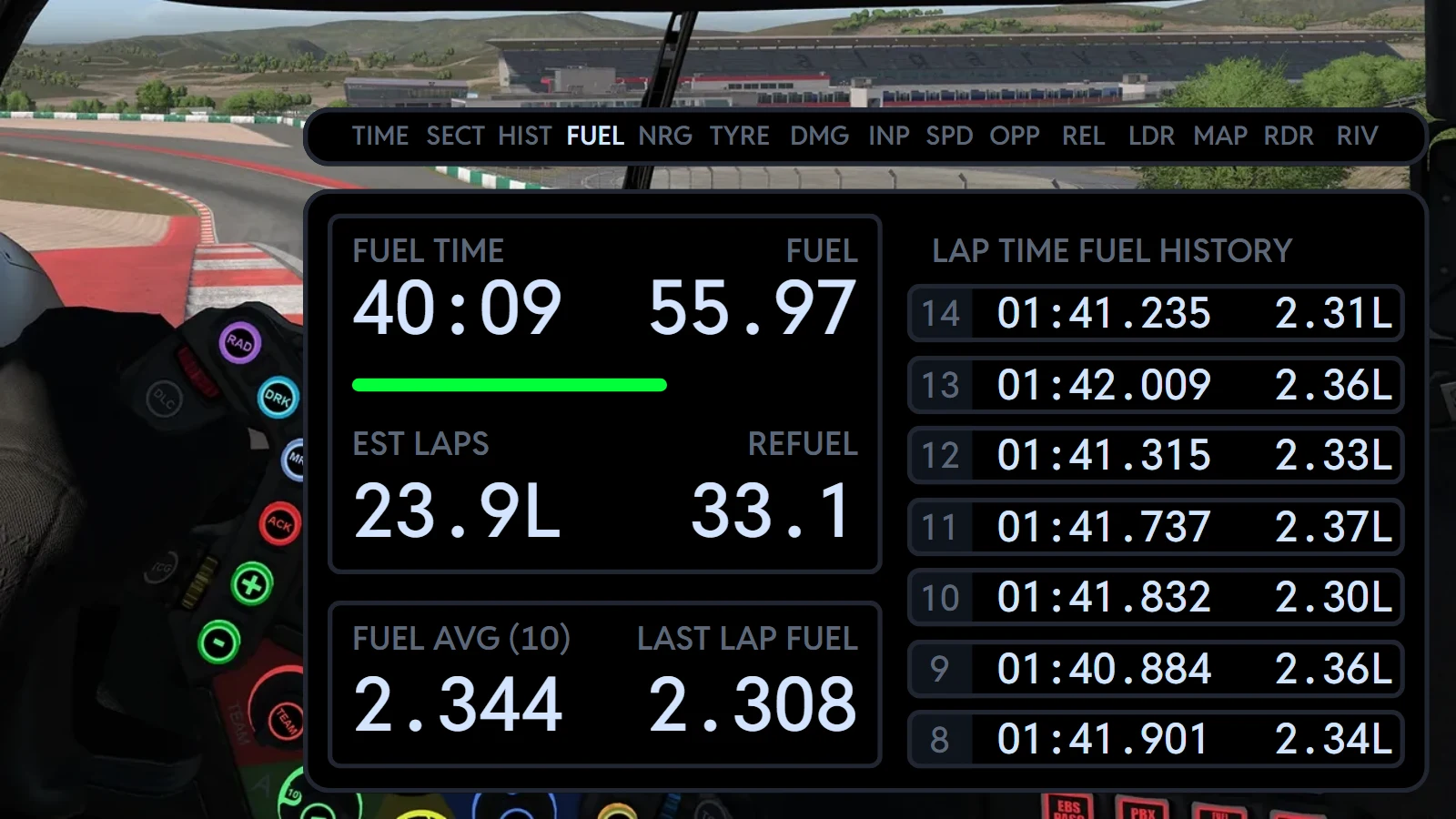
Lap Time shows your estimated, last and best laps in FIA regulation colours: purple for the fastest, green for a personal best, yellow when you are slower. Sectors compares each sector with your best and the session best the moment you close it, and Lap History keeps your last seven laps with the delta to your best and the fuel each one took.
The screens
- The estimate reads CURR LAP until there is a lap to estimate from
- Preferred Delta Reference: Vs My Best, Vs All-Time Best or Vs Last, falling back in that order
- Delta Decimals: 2 or 3 below 10 seconds, fewer as the gap grows
- A Fuel Target column on Lap History, moved 0.01 at a time from a hotkey
Strategy
Fuel, energy and the stop, worked out
Fuel shows the time and laps left in the tank, what you need to reach the flag and your average over the last laps, beside seven laps of fuel history. In Le Mans Ultimate, NRG does the same for virtual energy and warns FUEL < NRG when the fuel will run out first. In iRacing, PIT shows the pit menu you have set: refuel and how much, tear off, fast repair and the tyres, so you arrive knowing what the crew will do.
The screens
- Fuel average over 2, 5, 10 or 15 laps, the longest the stint has
- The fuel bar turns orange at 40 % and red at 20 %
- Fuel left reads red in the last 10 % of the tank
- Ticks on the Tyres screen mark the tyres the crew will change, in iRacing
The car
Tyres and brakes at a glance
Tyres draws each tyre in its temperature, blue when cold, green in the window, orange when hot, darkening from the top as it wears, with its brake temperature beside it and the compound in the middle. Pick the two values each corner shows, and the screen follows what your sim gives.
Primary data
In your sim
- Primary and secondary data: Wear, Pressure, Temperature Avg or Temperature, falling back to what the sim gives
- Tyres from blue at 40 °C through green at 80 °C to orange at 120 °C
- Brakes from blue at 200 °C through green at 400 °C to orange at 600 °C
- The compound as your sim names it, in its own colour
Damage
Damage, the moment it happens
Damage draws the bodywork part by part, each part turning yellow, orange and red as the damage grows. With Show on New Damage on, the Damage screen comes up for 4 seconds when your car takes new damage, then you are back on your screen, even if the Damage screen is off in your list.
- On your screen
- New damage: Damage, 4 seconds
- Back on your screen
As your sim gives it
- Rear wing damage in Automobilista 2, rFactor 2 and Le Mans Ultimate
- Suspension damage in Automobilista 2 and the Assetto Corsa games
- iRacing gives no damage data, so there is nothing to show there
Traffic
Every car around you
Opponents puts the car ahead and the car behind beside your own: the gap, their best and last laps and how your last lap compared. Relative lists the cars around you on the road, Leaderboard the order, Radar shows who is alongside, and Track Map shows the field on the circuit or follows your car up close.
The screens
- Opponents: Everyone on track, My class on track or My class standings
- In iRacing: each driver's licence and iRating, and the strength of field
- PIT and OUT on cars in the lane, a purple timer on the class's fastest lap
- Track Map: the circuit, its state, the corner you are in and the wind; Dynamic Map with zoom
Driving
Train with it, not just race with it
Inputs traces your throttle, brake and clutch on a live graph, and the Brake Limit Zone acts as a visual reference for your braking limit: brake past it and the zone pulses. Speedo gives speed, gear and revs in one look, the bar turning red at the car's redline. Track Rivals shows how the segment you are driving compares with your community rivals, live.
The screens
- Brake Limit Zone Value: anywhere from 0 to 100 %
- Show Clutch and Show Handbrake, each on or off
- Track Rivals: your rank in the community, the rival you are chasing and the gap to them
- Every screen can be switched off, and Default Screen picks the one it opens on
The look
Dark, Light and Dark Mode
Two themes, Dark and Light, and Dark Mode for night stints, which recolours the whole box in Red, Blue, Purple or Orange. Overlay Background Opacity lets the sim show through the box, so it can sit over the track without hiding it.
Theme
Dark Mode
Pick a theme to switch it off- Overlay Background Opacity: 0, fully transparent, to 100, fully solid
- Overlay Content Opacity: 10 to 100, so it stays readable
- Overlay Show Tab List: the row of tabs on or off
- Brand Logos: Coloured, or Monochrome to follow the theme
Your screen
Where you want it, the size you want
Quick setup puts the Virtual Box on screen in one click: tick it, choose one of nine positions and a size from 50 to 200 %. Changes apply straight away while the overlays are shown, and your choices are remembered.
Position
- Start with the game: SimHub starts it every time a game connects
- Fine tune positions opens SimHub's own edit mode to drag and resize it
- Presets, each linked to a game, load themselves when that game starts
Every sim, and the most from each
The Virtual Box runs on the free TrackThirtyTwo SimHub plugin, fed by TrackThirtyTwo ONE where a sim is covered and by SimHub's own data everywhere else.

- PIT: refuel, tear off, fast repair and tyres from the pit menu
- Licence, iRating and strength of field
- Ticks on the tyres the crew will change
- No damage data from the sim

- NRG: virtual energy, ratio and laps
- The FUEL < NRG warning
- Bodywork and rear wing damage
- Soft, medium, hard and wet compounds
Damage
- Bodywork, part by part
- Rear wing, where the sim gives it
- Suspension, where the sim gives it
- A part the sim does not report is left off
In every sim
- Fourteen screens, from Lap Time to Track Rivals
- Dark and Light themes, and Dark Mode
- Coloured or Monochrome brand logos
- Presets, each linked to a game
Virtual Box, answered
What is the Virtual Box?
Think the iRacing black box and the Co-Pilot control panel rolled into one. The Virtual Box is sixteen screens deep: fuel, tyres, pit service, damage, radar, relative, lap history and more, each one readable at a glance and quick to work without leaving the racing line.
How do I put it on screen?
Install it from TrackThirtyTwo > Overlays, then use Quick setup: tick the Virtual Box and choose where it sits. Everything there is live: ticking an overlay puts it on screen, position or size changes apply straight away while the overlays are shown, and your choices are remembered. Start with the game makes SimHub start it every time a game connects, and Fine tune positions opens SimHub's own edit mode so you can drag and resize it.
Why can't I see the PIT or NRG tab?
PIT is an iRacing only display panel: it shows your current pit selection, so you pit knowing what your crew are about to take care of. NRG tracks virtual energy, which Le Mans Ultimate has. Each one appears in its own sim; everywhere else its tab is left out.
Can I hide the screens I never use?
Yes. Every screen has its own Enable switch on the Virtual Box page, and Default Screen picks the one it opens on. Turn off Overlay Show Tab List to hide the row of tabs. The Damage screen still comes up on new damage even when it is off in your list, unless Show on New Damage is off.
Can I make it see through?
Yes. Overlay Background Opacity runs from 0, fully transparent, to 100, fully solid. Overlay Content Opacity runs from 10 to 100, with a minimum of 10 so it stays readable.
Can I have a different set up for each sim?
Yes. Save the Virtual Box as presets, link a preset to a game and star it as that game's favourite: it loads itself when that game starts. Presets also export and import as files.
Can I change it from my phone?
Yes, with Plugin Control in the TrackThirtyTwo app: the plugin's pages on your phone, overlays included. Pick a preset or change a setting and the change reaches your rig at once.
Which membership do I need?
Overlays need Team Driver or above. Without it the Virtual Box shows TEAM DRIVER MEMBERSHIP OR ABOVE IS REQUIRED in place of its screens.
Ready for Virtual Box?
Virtual Box unlocks with Team Driver and above, and runs from the free TrackThirtyTwo SimHub plugin.