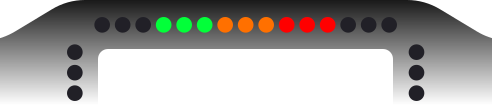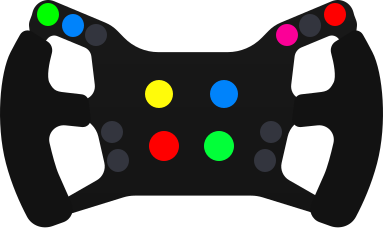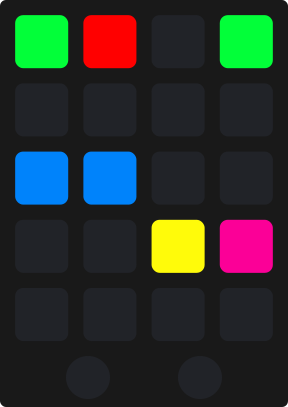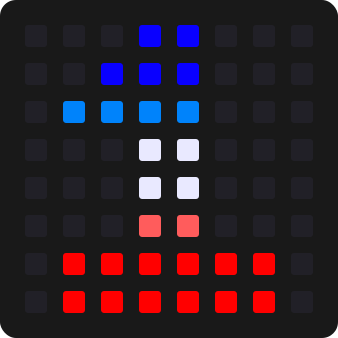
LED profiles
Ambient Lights
Your room joins the race. The lights around your rig take the colours on your screen, or the colour you choose, and flash every flag, the pit limiter, low fuel and the car alongside.
Your room joins the race
Ambient Lights drive the RGB lights around your rig to match your game: Philips Hue, Govee, LED strips and anything else SimHub's Ambient Lights can reach. Mirror the screen as you drive, give the menus, the race and the night a colour each, and let every flag and pit stop fill the room.
- Lights
- 12LightsEach its own mode, colour, region and brightness
- Screen regions
- 10Screen regionsFrom Far Left to Whole Screen
- Colour presets
- 8Colour presetsPlus a Custom colour of your own
- Situations
- 3SituationsIdle Mode, Game Mode and Dark Mode
 and above
Ambient Lights, with Team Driver.
Team Driver opens the Ambient Lights page in the plugin and the TrackThirtyTwo Ambient Lighting profile, with Brows and Flag Boxes alongside.
Why Ambient Lights wins
In step with the whole rig
The pit limiter and the engine start run the same fixed timeline on every TrackThirtyTwo device, from the same moment, and the flags blink at one shared rate. So when the limiter goes on, the room, the wheel, the brows and the boxes flash it together.
Light the room. Make it yours.
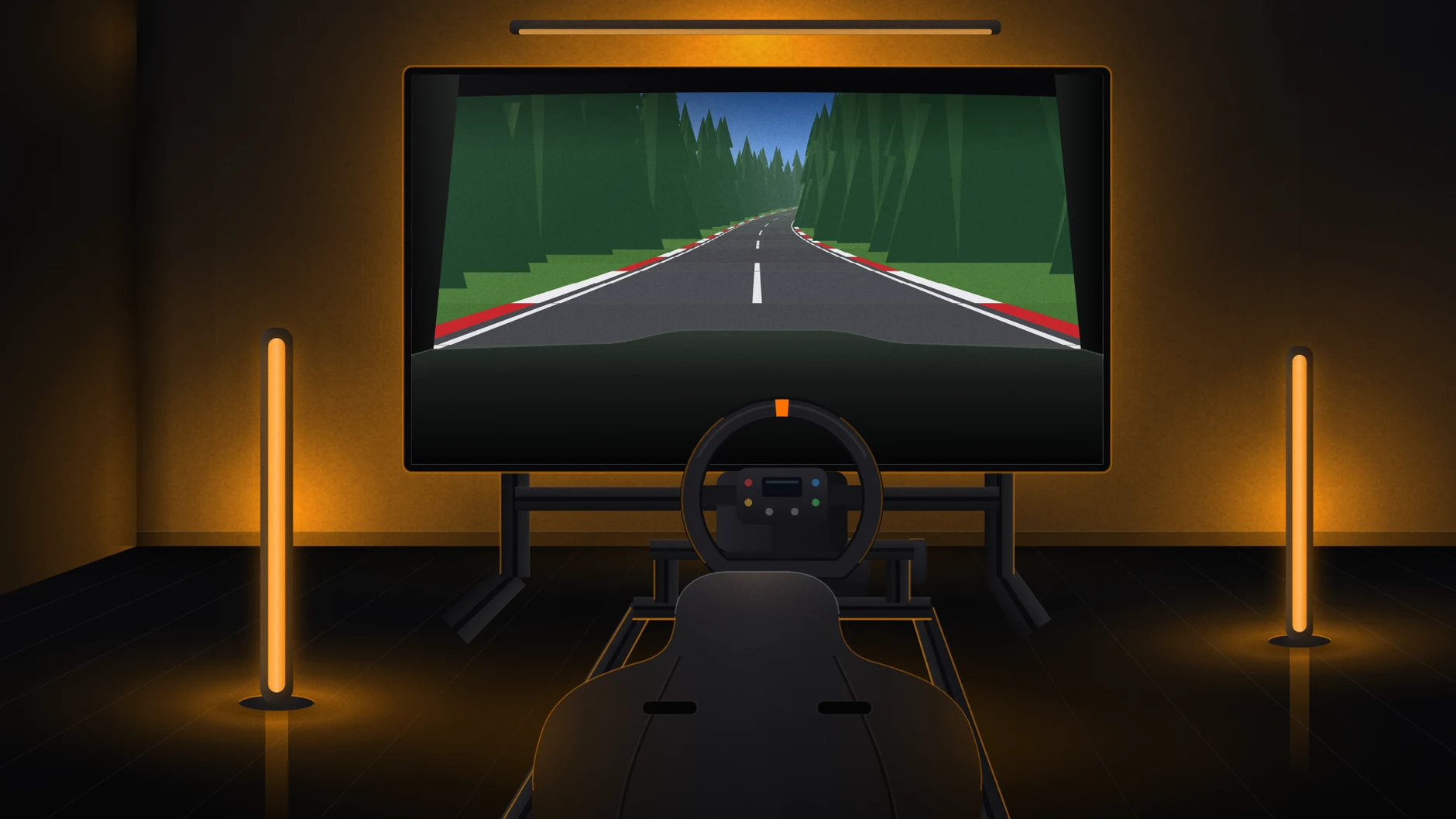
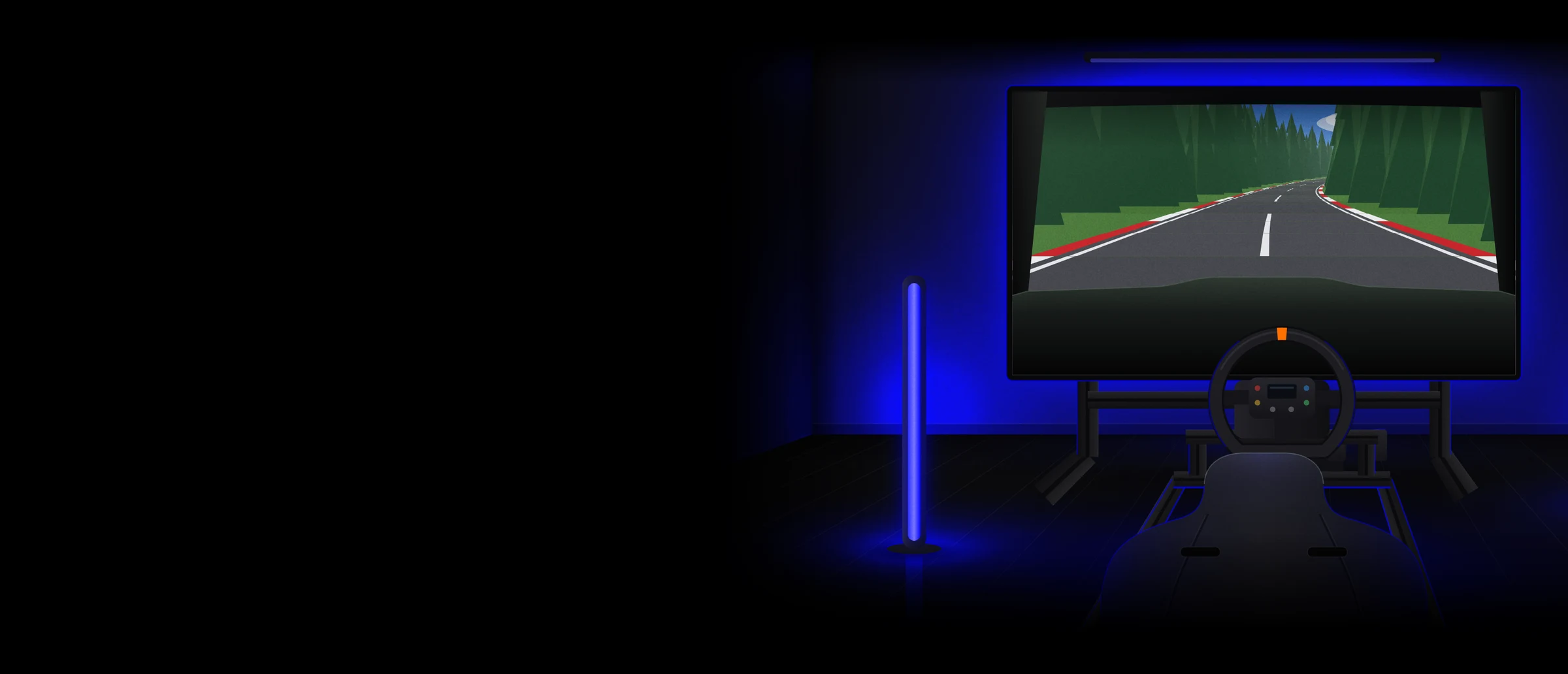
A rig in a dark room, a lap being driven on its screen and the lights round it, live. Work down the chapters: each one is a feature of Ambient Lights, and every option you pick shows in the room at once.
Three situations
A room for the menus, the race and the night
Ambient Lights keep three set-ups and change between them by themselves: Idle Mode while SimHub is open with no game running, Game Mode in a session, and Dark Mode in a session with Dark Mode on. In each you choose what the lights do: hold a colour, follow the screen or stay off, and in the menus they can follow your music.
When
Game Lights
- Menu Lights: Ambient Colour, Ambient Screen Capture, Off or Music
- Game Lights and Game Lights - Dark Mode: Ambient Colour, Ambient Screen Capture or Off
- A brightness of its own in each: 100% in the menus, 75% in the game and 50% in Dark Mode to start with
- Music: the loudness of what the PC plays fills the lights, and each beat lights them all
Ambient Colour
Eight colours, and one of your own
Ambient Colour holds the room in one colour. Pick from eight presets or set a Custom colour, one for the menus and one for the game, each with its own brightness. Dark Mode has a pair of its own: the True Dark Mode Colour, or Endurance Blue.
Game Colour
Game Colour - Dark Mode
- Red, Blue, Green, Yellow, Orange, Purple, Pink and White, plus Custom
- Menu Colour starts on Red and Game Colour on White
- With Universal Theme on, the ambient lights follow the colour every TrackThirtyTwo device shares
- Hotkeys step the menu and day colours without leaving the car
Race alerts
Every flag and warning, on your walls
Marshal Flags flash the room in the flag's colours. Pit Lane Effects warn you into the pit lane in red if the limiter is off, flash red if you are over the limit and green if you leave with it still on. Low Fuel turns the room your Low Fuel colour until you acknowledge it, and the spotters blink the lights on the side a car is alongside.
Marshal Flags
Press one to play itIn the race
- Flags, spotters, pit lane effects, low fuel and the engine start are each switched per light
- A flag blinks every 300 ms; the spotter every 300 ms, and every 150 ms once the car is within 5 m
- Effects Brightness (Game) and (Dark Mode), apart from the room's own
- Low Fuel Acknowledge: a hotkey clears the warning once you have seen it
Behaviour
The limiter and the engine start, in your shape
With the limiter on, the room runs the traditional blue and white. As the engine fires, an Engine Startup Animation sweeps the lights, from white to your engine start colour. Each has a Behaviour setting that picks the shape it plays across your lights, and whichever you pick it keeps the beat every other TrackThirtyTwo device is on.
Pit Lane Effects: Behaviour
Engine Startup Animation: Behaviour
- Pit Lane Effects: Alternating bands, Walking light, Flash together, Checker and Bounce
- On room lights Checker plays as Alternating bands does: both trade places light by light
- Engine Startup Animation: Spark shower, Fill up, From the centre and Pulse
- Two seconds in every shape: 40% build, 20% hold, 40% fade
Screen regions
Every light, its own part of the screen
In Ambient Screen Capture, Per Light gives each light its own Screen Region. A region is a part of your screen, not a place in your room: a lamp to the left of your monitor follows the left of the picture, a light behind the screen follows the Whole Screen. TrackThirtyTwo averages the colour of that region and sends it to that light.
Screen Region
- Top, Far Left, Left Side, Centre, Right Side, Far Right, Bottom, Bottom Left, Bottom Right and Whole Screen
- Idle Mode, Game Mode and Dark Mode each keep their own regions
- Capture Monitor: All Screens, or just the screen your sim runs on
- Live output per light, in Capture Settings, shows exactly what each light is sent
Capture settings
Tuned to your taste
Six sliders shape what the lights do with your screen. Colour sets how much of the screen's colour reaches the room, from pure brightness to the full colour. Response Smoothing decides how fast the brightness follows, from instant to slow and calm. Dynamics stretches the brightness your view shows across the full range, so shade reads dark and sun reads bright, and Gain lifts dim scenes.
- Colour starts at 50%, Response Smoothing at 20%, Dynamics at 100% and Gain at 1×
- Gain goes to 3×; Dynamics at 0% sends the raw brightness
- Zone Focus cuts away the middle of each region, so the lights follow the edges of the screen
- Mask Threshold decides how easily a part of the screen counts as scenery
Auto Learn
It learns your cockpit
TrackThirtyTwo Auto Learn studies your screen and builds a cockpit mask: which pixels are the static cockpit, the wheel and the dash, and which show the sky and the track through your windows. Drive for a few seconds after loading a session and the mask builds itself. It is saved per game and car, so the next session loads instantly with no relearning.
- Auto Learn Status: a red bar while it learns, green when the mask is ready and sampling
- Capture Source, per light: TrackThirtyTwo Auto Learn, or SimHub Default, the matching box from SimHub's own Ambient tab
- Auto-Relearn updates the mask on its own when your seat, FOV or hardware changes
- Reset Learned Mask clears only the current car and game, and every other mask is left alone
Grouped or Per Light
One room, or twelve lights of their own
Number of Lights goes up to 12. Grouped gives every light the same settings, so the room moves as one. Per Light makes each light its own: its own mode, colour, Screen Region and brightness, its own flags and effects, and the side it answers to when a car is alongside.
Light Configuration Mode
- This room
- 5 lights
- The plugin drives
- Up to 12
- Up to 12 lights, set with Number of Lights
- The spotter needs Per Light: it is disabled during grouped use
- Grouped: a two colour flag, the limiter and the engine start run across the lights in order
- Per Light: every light plays each alert by itself
How it works
From your screen to your lights
TrackThirtyTwo works out each light's colour and hands it to SimHub through the TrackThirtyTwo - Ambient Lighting profile, and SimHub's own Ambient Lights module sends it to your lights. So it drives whatever SimHub drives, and the plugin never stalls the stream your lights depend on.
- Philips Hue, Govee, Nanoleaf, WLED, Razer Chroma, addressable LED strips and more
- Best with the game borderless or windowed; exclusive fullscreen falls back to another capture method
- Hotkeys change preset and switch the flags, spotters, pit and low fuel effects without leaving the car
An alternative, not a replacement
Every brand.
One experience.
TrackThirtyTwo does not replace the software your hardware maker gives you. It is an alternative to it: one that works with every brand on your rig and treats them all alike.


































01
Every maker's hardware
A maker writes software for its own wheel, and it stops at that maker's hardware. TrackThirtyTwo works with all of it, whoever made it.
02
The same on every brand
One set of settings, effects and themes across your rig, so it does not matter which brand you race on.
03
Everything in step
One suite runs every device, dashboard and overlay, so timings and animations never mismatch the way they can when different solutions are mixed.
Your lights, through SimHub
Anything set up in SimHub's own Ambient Lights section, with the TrackThirtyTwo - Ambient Lighting profile on it.
Lights
- Philips Hue
- Govee
- Nanoleaf
- WLED
- Razer Chroma
- Addressable LED strips
Situations
- Idle Mode: SimHub open, no game running
- Game Mode: a session running
- Dark Mode: a session with Dark Mode on
Shared with every device
- Universal Spotter Settings
- Universal Flags Settings
- Universal Engine Start Settings
- Universal Low Fuel Settings
- Universal Theme
Ambient Lights, answered
What do I need to use Ambient Lights?
A Team Driver subscription or higher (Ambient Lights are not included in Free or Pit Crew), SimHub installed with the TrackThirtyTwo plugin activated, and one or more lights already set up in SimHub's own Ambient Lights section.
Which lights are supported by Ambient Lights?
Anything SimHub's Ambient Lights module supports: Philips Hue, WLED, Nanoleaf, addressable LED strips via Arduino and more. TrackThirtyTwo computes the colours; SimHub sends them to your hardware, through the TrackThirtyTwo - Ambient Lighting profile.
How many Ambient Lights can I have?
Up to 12, set with Number of Lights on the Configuration tab. Grouped applies the same settings to every light; Per Light makes each one fully independent, with its own mode, colour, screen region and brightness.
What do the screen regions mean?
A region picks a part of your SCREEN, not a place in your room. TrackThirtyTwo averages the colour from that area, so a lamp physically sitting to the left of your monitor should be given Far Left or Left Side, because that is the part of the picture you want it to follow. Whole Screen samples everything with no split, the right choice for a single light meant to reflect the whole screen. Top and Bottom take the top and bottom of the view.
What is the difference between TrackThirtyTwo Auto Learn and SimHub Default?
TrackThirtyTwo Auto Learn uses TrackThirtyTwo's own capture for the light: it learns which part of the screen is cockpit and which is sky and track, then samples the Screen Region you give that light. SimHub Default mirrors the matching box from SimHub's own Ambient tab, without the cockpit mask. Capture Source is set per light. If you are unsure, leave it on TrackThirtyTwo Auto Learn.
Why does the spotter not work on my ambient lights?
The spotter effect is disabled while you are in Grouped mode, and the plugin says so on the setting: spotters need to light one side or the other, which means nothing when every light is driven the same. Switch to Per Light, choose Left or Right for each light, and use more than one light.
My game runs in exclusive fullscreen and the lights freeze or go black
TrackThirtyTwo automatically falls back to a different capture method for exclusive fullscreen games. If it still struggles, set the game to Borderless or Windowed Fullscreen, which is the most reliable mode for screen capture.
Ready for Ambient Lights?
Ambient Lights unlocks with Team Driver and above, and runs from the free TrackThirtyTwo SimHub plugin.