
LED profiles
Flag Boxes
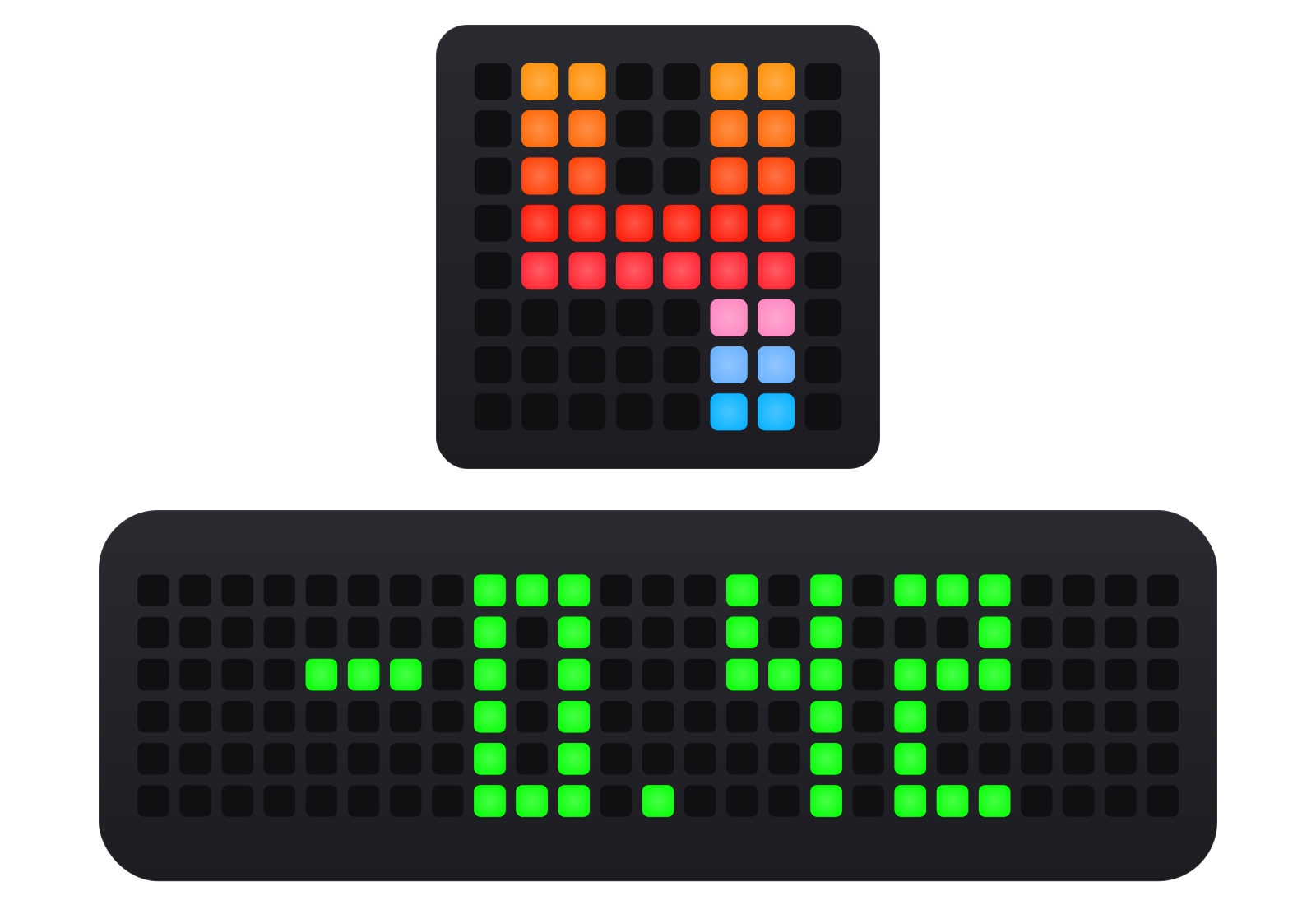
LED matrix displays that draw your gear, every marshal flag, your warnings and the car alongside in light, on an 8x8 flag box or a Multi LED Display.
Every flag, drawn in light
A flag box sits beside your screen and draws the race as symbols, not a bar of colour: the gear you are in, a yellow in your sector, the car on your left, a fuel can when you are running dry. One Flag Box Profile runs an 8x8 matrix flag box and a Multi LED Display, and the plugin puts the right drawing on each.
- Marshal flags
- 11Marshal flagsFrom yellow to checkered, for the rig or per box
- Boxes, four jobs
- 4Boxes, four jobsRun more and the rest mirror one of them
- MLD readouts
- 14MLD readoutsIn place of the gear on a Multi LED Display
- Download
- 1DownloadThe same Flag Box Profile for either kind of panel
 and above
Flag Boxes, with Team Driver.
Team Driver adds Flag Boxes, Brows and Ambient Lights to the RPMs, Wheel Buttons and Button Boxes that Pit Crew lights.
Why Flag Boxes wins
Flags the sim keeps to itself
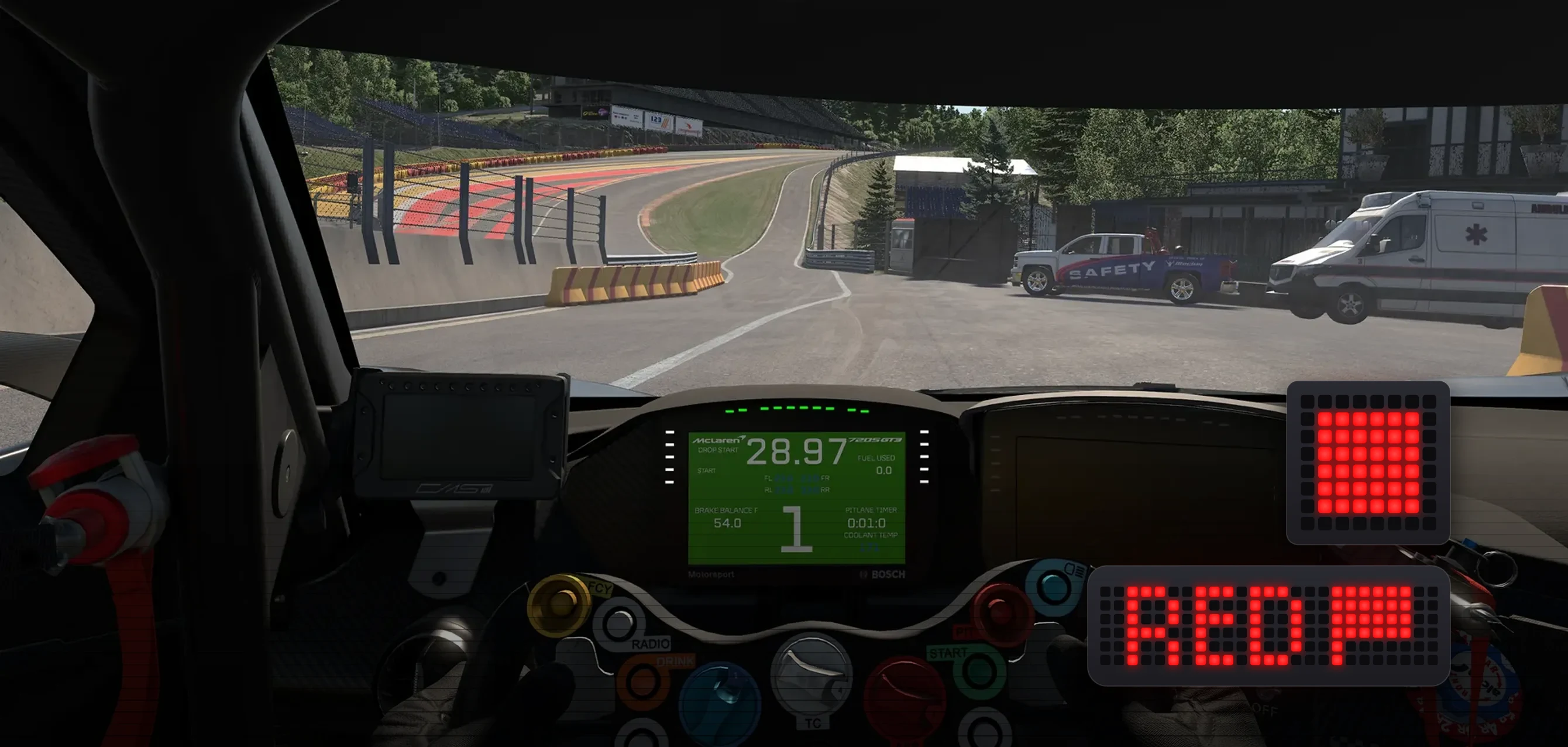
SimHub publishes no red flag for Le Mans Ultimate. TrackThirtyTwo ONE, part of the plugin on every plan, reads the sim itself, so your flag box draws it anyway, along with a full course yellow as the safety car and the car's own overheating lamp as the water warning.
A flag box, racing
One panel, drawn light for light as the Flag Box Profile draws it. Each chapter is one thing a flag box does: press its options and the panel shows them at once, on an 8x8 Flag Box or a Multi LED Display.
Marshal flags
Every flag race control waves
The flag on your wheel is the flag on your box: the Universal Flags Settings choose which ones show, and a box can pick its own. A flag takes the whole panel, so the gear gives way while it is out and comes back when it clears. Press one to wave it.
Wave a flag
Panel
- Eleven flag switches: Yellow, Blue, Green, White Slow Car, White Final Lap, Checkered, Safety Car, Orange, Debris, Black and Red
- Sector yellows by number in Assetto Corsa Competizione and Le Mans Ultimate, double yellows in Automobilista 2 and Assetto Corsa Competizione
- Flags Blink Frequency sets the flashing speed
- Flags Visible Yellow Sector: a yellow anywhere on the track, or only in the sector you are in
- Checkered Flag Duration and White Flag Final Lap Duration cap how long those two run
Gears
Your gear, the size of the whole panel
With no flag out the box shows the gear you are in. Gear Style picks the shape of the number, Slim or Bold, and Inverted knocks the number out of a lit panel. At the redline the gear flashes in the theme's redline colours, or holds still if you would rather it did.
Gear Style
Panel
- Gear Style: Slim, Slim Inverted, Bold or Bold Inverted
- As it shipped: bold on an 8x8, slim on a Multi LED Display
- Flag Box Redline Behaviour: Flashing (Default) or Static
- Reverse, neutral and every forward gear, drawn for each panel
- Gears can be switched off on a box that should only show flags
Gears Colour Theme
Thirty four themes, and one for the night
The gear wears a theme from its top row down, and the redline takes the theme's own redline colours. They are the same 34 themes as every TrackThirtyTwo LED profile, so the box matches your wheel. Dark Mode puts the gear, the spotter, the limiter and the low fuel warning in one colour for night stints, with the redline in its partner colour.
Dark Mode
Panel
- 34 themes, the same list on every TrackThirtyTwo LED profile
- Custom: up to three colours of your own for the gear, and three for the redline
- Dark Mode: Red, Blue, Purple or Orange, or Custom with your own main and alternative colours
- Flags keep their own colours in Dark Mode
- Universal Theme makes every device follow one colour
Penalties and warnings
Bad news, in time to act on it
A penalty spells itself out across the panel, an incident or a disqualification is a cross, and the car's own warnings are pictures: a fuel can, an oil can, a thermometer. Each takes the panel when it happens and hands it back to the gear.
Play one
Panel
- Drive Through and Stop & Go in Assetto Corsa Competizione, Automobilista 2, RaceRoom and the F1 games
- Penalty Warning Duration caps how long a penalty shows
- Low fuel follows SimHub's fuel alert, and can stay quiet in hotlaps, qualifying and practice
- Oil at 120 °C and water at 110 °C unless you set your own limits
- iRacing incidents as your count goes up, and disqualifications in iRacing and Assetto Corsa Competizione
Proximity spotters
The car alongside, on the side it is on
A car alongside lights the panel with arrows pointing at it: fast while it is close, slower once it is further away than your Spotter Distance Far. Put a box either side of the wheel and each can watch its own side. Number of Flag Boxes says how many to set up separately; Grouped gives them all the same settings and Per Box gives each its own. Four can each do something different, the limit on separate content SimHub can send, and any more mirror one of the four.
A car alongside
Your boxes
- Spotter Side: Both Sides (Default), Left Only or Right Only
- Flags on this box: Follow Universal Flags (Default), or This box picks its own flags
- Gear Style, colours and idle screen per box, so two boxes do not have to match
- The spotter takes the Dark Mode colour at night
- A blue flag holds back while a car is alongside, so the spotter is never hidden
Multi LED Display
Fourteen readouts in place of the gear
A Multi LED Display (MLD) is 25 lights wide, room for numbers. While a game runs it can show the gear or any one of fourteen readouts instead, green when it is going your way, red when it is not and white otherwise. Flags, the pit lane, the spotter and the alerts still take over when they need to. Pick one to see it.
In place of the gear
- Lap delta as a number or a bar, measured Vs Last, Vs My Best or Vs All-Time Best
- Lap timer, Last lap, and Position overall or in class
- Gap ahead and Gap behind, Fuel laps, Speed, Lap number, Session time left, Laps left and the Pit box countdown
- The Clock, in the 12 or 24 hour form this PC is set to
- Brake bias, traction control, ABS, the engine map and the anti-roll bars for a few seconds when they change, each with its own switch
Pit lane
The whole pit stop, told on the panel
From the pit entry to the exit line the box tells you what you need to know. It flashes red if you come in without the limiter, shows the limiter in your two Universal limiter colours while it is on, counts you down to your box in iRacing, and lights green as you cross the exit line with the limiter still on.
The stop, part by part
Panel
- Pit Lane Effects: one switch for every limiter and pit lane warning on the box
- A warning when you are over the pit speed with the limiter off
- Pit Box Countdown to your stall, iRacing only, with the RomainRob SimHub plugin
- The limiter shows outside the pit lane too, so you can see it is still on
Ignition and engine start
It knows when you climb in
Before the engine fires the box shows the ignition. An 8x8 draws a bolt: flashing red with the ignition off, steady yellow once it is on. A Multi LED Display spells it out: IGNITION, then ENGINE. Start the engine and the box lights up in the Universal engine start colour before it hands over to the gear.
Behaviour
Climbing in, part by part
Panel
- Ignition/Engine Start Animation: on unless you switch it off
- Behaviour: Spark shower, Fill up, From the centre or Pulse
- The engine start colour is a Universal colour, shared by every TrackThirtyTwo device
Idle Screen
Something to look at between sessions
With no game running the box keeps you company: the TrackThirtyTwo logo, Animated (Default) or Static, in the Idle Animation Theme you pick; the clock on a Multi LED Display; the music this PC is playing, filling the panel from the bottom row up and flashing on every beat; or a drawing of your own. Pick Custom and draw one on the panel.
Flag Box Idle Screen
Panel
- Custom: draw your idle image light by light, and add frames to make it animate
- Saved designs you can switch between, duplicate and share
- Universal Theme makes every device follow one colour
- Off keeps the panel dark until you drive
An alternative, not a replacement
Every brand.
One experience.
TrackThirtyTwo does not replace the software your hardware maker gives you. It is an alternative to it: one that works with every brand on your rig and treats them all alike.





































01
Every maker's hardware
A maker writes software for its own wheel, and it stops at that maker's hardware. TrackThirtyTwo works with all of it, whoever made it.
02
The same on every brand
One set of settings, effects and themes across your rig, so it does not matter which brand you race on.
03
Everything in step
One suite runs every device, dashboard and overlay, so timings and animations never mismatch the way they can when different solutions are mixed.
Either kind of panel, one profile
The Flag Box Profile carries the drawings for both kinds of panel, the 8x8 matrix and the 25 x 6 Multi LED Display. The plugin looks at each device it lands on and puts the right one there, on every flag box you run.
Panels
- 8x8 matrix flag boxes, home built or branded
- Multi LED Display, 25 x 6
- Up to four boxes set up separately, more mirroring them
In SimHub
- A home built 8x8 under Arduino > RGB Matrix
- A branded box or a Multi LED Display under its maker's own device
- Installed from the plugin: LED Devices, MANAGE on Flag Boxes
Sims
 iRacing: debris, incidents and the pit box countdown
 Assetto Corsa Competizione: sector yellows, double yellows and penalties
 Le Mans Ultimate: sector yellows, and the red flag through TrackThirtyTwo ONE
 Automobilista 2: double yellows and penalties
 The F1 games: the safety car and the virtual safety car
 Every other sim SimHub reads: the gear, the flags it publishes, the spotter and the pit limiter
Flag Boxes, answered
What does the Matrix Flag Box show?
A matrix flag box is an LED matrix that draws race information as symbols rather than as a bar of colour. Its page is TrackThirtyTwo > Flag Boxes. An 8x8 flag box and a Multi LED Display both run the one Flag Box Profile download, and the plugin puts the right profile on each device. It draws the gear, every marshal flag, penalties, low fuel and temperature warnings, the proximity spotter, the pit limiter and the pit lane warnings, and on an MLD a choice of readouts in place of the gear.
Which flag box profile do I download for an 8x8 matrix flag box or a Multi LED Display?
There is one flag box download, TrackThirtyTwo - Flag Box Profile, and it is the same file whether you own an 8x8 matrix flag box, a Multi LED Display, or both. It carries both the 8x8 flag box profile and the MLD profile. The plugin looks at the device the file lands on and puts the right one there, so there is nothing to choose. Installing it from the plugin does this straight away: LED Devices, MANAGE on Flag Boxes, Install this profile.
Can I run more than one flag box?
Yes. Number of Flag Boxes says how many you want to configure separately, and Box Configuration Mode chooses how they behave: Grouped gives every box the same settings, Per Box gives each one its own job, such as two showing spotters and two showing gears. Four boxes can each do something different, which is the limit on separate content SimHub can send. You can still run more than four, and the extras mirror one of those four.
Can I change what my flag box shows when I am not driving?
Yes. The Idle Screen tab on TrackThirtyTwo > Flag Boxes controls what the matrix displays while SimHub is running but you are not in a session: the TrackThirtyTwo logo, animated or static, a drawing of your own, the clock on a Multi LED Display, the music the PC is playing, or Off. If your flag box shows nothing at all when idle, check this setting first. Off is a valid choice and looks identical to a device that is not working.
How do the marshal flag LED animations work?
The flags themselves are chosen in the shared Universal Flags Settings, so the flag on your wheel is the flag on your box. Flags Blink Frequency sets the flashing speed, Flags Visible Yellow Sector chooses whether a yellow shows from the whole track or only in your current sector, and Checkered Flag Duration and White Flag Final Lap Duration cap how long those run. On a matrix flag box the flag is drawn on the matrix, and a box set to pick its own flags can show a flag that is switched off everywhere else.
What is Dark Mode and how do I turn it on?
Dark Mode dims and recolours every compatible TrackThirtyTwo product at once, for night stints and dark rooms. It has its own page in the plugin, marked with a moon icon, with a choice of Red, Blue, Purple or Orange, or Custom with your own main and alternative colours. On a flag box the gear takes the main colour and the redline the alternative, and the spotter, the limiter and the low fuel warning follow it.
Ready for Flag Boxes?
Flag Boxes unlocks with Team Driver and above, and runs from the free TrackThirtyTwo SimHub plugin.