
LED profiles

Button Boxes

Every key on your button box lit with meaning: its own job, a theme across the rest, and the flags, spotters, pit limiter and redline flash over the whole box.

See it liveAll LED profiles
Button Boxes LED profile

Every key lit with meaning

A button box is where the car gets adjusted, so every key should tell you something. The Button Box Profile gives each key its own job, the ignition, the limiter, DRS, the TC and brake bias you change, lays a theme across the rest, and plays the race over the whole box: the flags, the car alongside, the pit limiter, the redline. One download builds itself for your exact box.
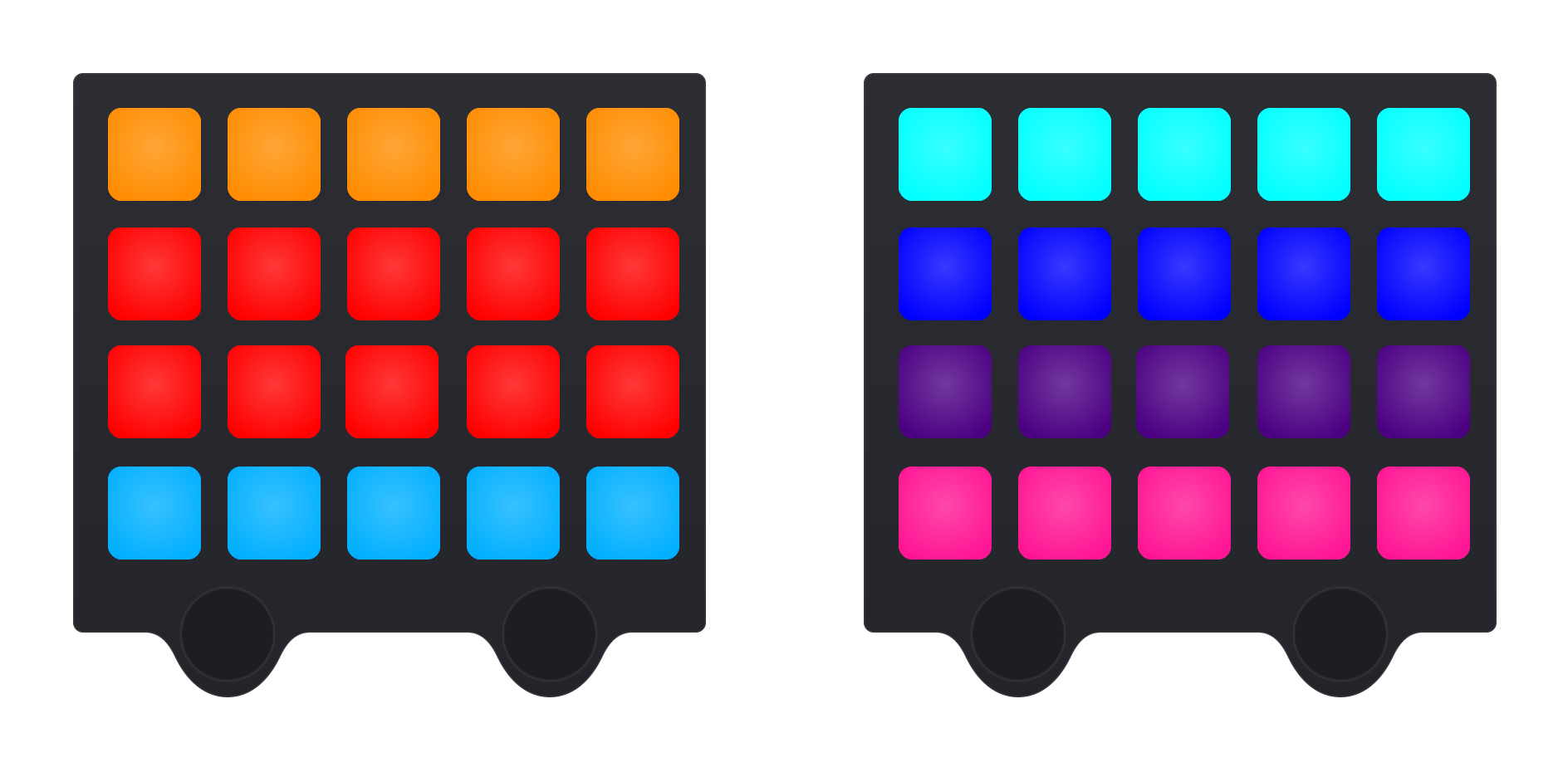
Two Bavarian SimTec Control Centers side by side, the same size: one wearing the TrackThirtyTwo theme, orange over red over blue, the other the Tokyo theme, cyan, blue, purple and pink, every key lit in its theme colour
Key effects
52Key effectsFrom the headlights to iRacing's pit service
Themes
34ThemesAnd Custom, a colour of your own for every key
Idle animations
18Idle animationsBreathe to Music, at three speeds
Boxes on one rig
4Boxes on one rigEach with its own settings, twins included

Pit Crewand above

Button Boxes, with Pit Crew.

Pit Crew lights Button Boxes, RPMs and Wheel Buttons. Team Driver and Team Principal light every device on the rig.
See Pit CrewGet the plugin

Why Button Boxes wins

Two of the same box, each its own

SimHub answers a key press with the first controller it finds with the box's USB id, so two identical boxes both read the first. Press Light this box, then one of its keys, and TrackThirtyTwo learns which controller is which box. From then on each box lights only its own presses, under its own settings.

See it live

Pick your box. Light every key.

One box, lit by the Button Box Profile as the car laps. Each chapter is one thing the profile does: pick its options and the box shows them at once. The box and the theme you pick stay with you from chapter to chapter.

Built for your box

One download, built for your exact box

There is one Button Box Profile, the same file for every box. When it lands on your box the plugin fills it in for that exact box, the button map, the colours, the effects and the idle animation, built on your PC from the data for your account. Pick your box on the page, or let automatic device selection find it when it is connected.

Select Your Button Box

  • Five of the boxes the plugin draws key for key are here. The SimDash SD8-BB1, the Heusinkveld DisplayDash and the Pro Switch Panel are drawn in the plugin too
  • Not in the list? The plugin's builder draws your own box in about five minutes, marked Experimental
  • One download for all three Pokornyi MCP modules: the plugin builds each one differently

Themes

Thirty four themes, fitted to your box

A theme lays its colours across the box, and each key's own effect lights over it. TrackThirtyTwo and the newer themes are cut by the box's own rows, top, middle and bottom, as evenly as the rows allow. Heritage, Racing, the fades and the painted six are painted for each box by hand. Dark Mode turns every key one colour and each key's effect its partner colour, so the box still says everything at night.

Game Theme34 themes

Dark Mode

  • A Game Theme for the race and a Menu Theme for the desktop, each chosen on its own
  • Custom: a colour of your own for every key
  • Universal Theme, to match every TrackThirtyTwo device
  • Dark Mode in Red, Blue, Purple, Orange or your own

Button Effects

Fifty two jobs a key can do

A button box is where the car gets adjusted, so it carries the widest effect list of any TrackThirtyTwo device. Click a key on the box and give it a job: it then lights from what the car is doing, the ignition, DRS, the limiter, a TC or brake bias change, or from your own press where the game reports nothing.

Pick a key, here or on the box
Kind of job

Car systems: the job for key 4

Shown at work for a few seconds
  • Lights and visibility: Headlights, Flasher, Rain Light, the indicators, Hazard Lights and Wipers
  • Car systems: Ignition, Engine Start, DRS, KERS, Push to pass, Pit Limiter, ERS Mode and Low Fuel Alarm
  • Adjustment pairs, a key each for up and down: TC, TC Cut, ABS, Engine Map, Brake Bias and Fuel Adjust
  • Manual: Momentary Press, Latching Toggle and Kill LEDs, with a Press and a Toggle colour of the key's own
  • iRacing pit service: fuel, tyres by corner, the compound, Fast Repair and the tear off

Game effects

The race, played over the whole box

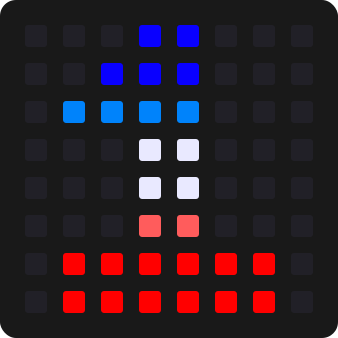
Over the keys and their jobs the profile plays the race itself: the marshal flags as race control waves them, a bracket of keys on the side a car is alongside, the pit limiter in your two limiter colours, the redline flash and the engine start. Each one plays as it happens, then hands the keys back.

Marshal Flag Animations

Press one to play it

Spotters, pit lane, redline and engine start

  • Marshal flags: yellow, blue, green, white, chequered, debris, orange, black, red and the safety car
  • Proximity spotters: a bracket on the side the car is on, quicker when the car is close
  • The pit limiter: a band a row in your two Universal limiter colours, swapping every 300 ms
  • The redline flash: 125 ms lit, 125 ms dark, off until you switch it on
  • Each one switched on or off on its own

Effects

Every effect in the shape you choose

Three of a box's effects come in more than one shape, picked for each device on its own: the pit limiter, the engine start and what a key does when you press it. Every shape keeps the same timing, so a box and a wheel on different shapes still flash together.

Pit Lane Animations

Engine Startup Animation

Input Effect Animations

  • Pit limiter: Alternating bands, Walking light, Flash together, Checker or Bounce
  • Engine start: Spark shower, Fill up, From the centre or Pulse
  • Key press: Flash to black, Flash to white, Hold lit, Hold dim or Ripple

Idle & Menu

Eighteen ways to wait for the green

With no game running the box wears its Idle Theme, and an Idle Animation moves it. The animation only changes how bright each key is, never its colour, so the box always shows the theme you chose. Speed is Slow, Normal or Fast, and Unlit buttons either keep a faint glow of the theme or go dark until the animation reaches them.

Style

Speed
Unlit buttons
  • Breathe, Wave, Ripple, Twinkle, Bounce, Orbit, Theatre Chase, Alternate, Wipe and Rain
  • Blocks, falling pieces that stack and clear rows, and Worm, the snake game, played on the keys
  • TrackThirtyTwo Wave, Sweep, Comet, Fill And Drain and Centre Out, the styles your wheel and rev strip have too
  • Music: the loudness of whatever your PC is playing fills the box, and every beat lights it
  • A press on the desktop has Input Effect Animations of its own, separate from the race

Two boxes or more

Up to four boxes, each with its own settings

Every box on the rig gets a number and a live preset of its own, so a second box of the same model starts on its own settings instead of copying the first. SETTINGS BELOW APPLY TO picks which box the page is setting up, and Light this box makes that one blink for a few seconds so you can see which it is.

Settings below apply to
Game Theme, box 134 themes
  • Up to four boxes, two of the same model included
  • Each box picks its own preset for the game you start
  • The three Pokornyi MCP modules are one box
  • Light this box: full and dark by turns, every quarter second, for four seconds

Mounting

Mounted any way round, lit the right way up

Turn the box on the page to match how it sits on your rig, clockwise as you face it. Your buttons keep working exactly as they did and the picture turns, and the lighting turns with it: a theme's top row is the top of the box as you see it, the idle animations run across it, and the spotter lights the side the car is really on.

Mounting

Play one, as the box is mounted

  • Mounting: 0°, 90°, 180° or 270°
  • Painted themes are laid onto the turned box, so they stay level too
  • The limiter's bands and the spotter follow the turn
  • Every drawn box with a grid can turn

Presets and hotkeys

Change it without leaving the car

Presets are saved per box and per game: when a session starts the box loads the preset for that game, or Any game if you have not made one. Map keys in SimHub to the Hotkeys tab and step the theme, the idle animation, the preset and the brightness from the seat.

PRESETS

GAME THEME

BRIGHTNESS

  • PRESETS: Previous Preset and Next Preset
  • GAME THEME and MENU THEME: Previous Colour and Next Colour, each on its own
  • IDLE ANIMATION: Previous and Next Idle Animation
  • BRIGHTNESS: Decrease and Increase, 5% a press, mid session

An alternative, not a replacement

Every brand.
One experience.

TrackThirtyTwo does not replace the software your hardware maker gives you. It is an alternative to it: one that works with every brand on your rig and treats them all alike.

  • Acelith
  • AlphaTec Racing
  • Ascher Racing
  • Base Performance Simulators
  • Bavarian SimTec
  • Box One Racing
  • Conspit
  • Cube Controls
  • Delta Sim-Tech
  • Elgato
  • Fanatec
  • Gomez Sim Industries
  • Govee
  • GRID Engineering
  • Heusinkveld
  • MiraBox
  • MOZA Racing
  • Murico
  • P1 Sim
  • Philips Hue
  • Pokornyi Engineering
  • Precision Sim Engineering
  • Razer
  • Rexing
  • Sim Racing Addict
  • Simagic
  • Simcore
  • SimDash
  • SIMDID
  • SimLab
  • SimRep
  • Simutec
  • Soelpec
  • Twenty One Performance
  • Ulanzi
  • Velocitas Imperium
  • VNM
  • VPG
  • VRS
  • Zens Sim Wheels
  • 01

    Every maker's hardware

    A maker writes software for its own wheel, and it stops at that maker's hardware. TrackThirtyTwo works with all of it, whoever made it.

  • 02

    The same on every brand

    One set of settings, effects and themes across your rig, so it does not matter which brand you race on.

  • 03

    Everything in step

    One suite runs every device, dashboard and overlay, so timings and animations never mismatch the way they can when different solutions are mixed.

Works with

Drawn in the plugin, key for key

The plugin draws the Control Center, the BOR X1 and the FX Button Box, the DisplayDash, the three MCP modules, the Pro Switch Panel, the SD8-BB1 and the VI-CWBB, so you click the real button on screen rather than working out which LED it is.

Button boxes

On the rig

  • Up to four boxes, each with its own settings
  • Universal Theme, to match every TrackThirtyTwo device
  • Dark Mode, in Red, Blue, Purple, Orange or your own
  • DRS, KERS, ERS and push to pass where the car has them

Sims with their own presets

  • Assetto Corsa and Assetto Corsa Competizione
  • Assetto Corsa Evo
  • Automobilista 2
  • The F1 games
  • iRacing, with its pit service on the keys
  • Le Mans Ultimate
  • Rally games and BeamNG.drive
  • Any game, for everything else
Questions

Button Boxes, answered

What LED effects can I assign to button box buttons?

Button boxes carry the widest effect list of any TrackThirtyTwo device, because a button box is usually where the car adjustment controls live. Lights and visibility: Headlights, Flasher, Headlights and Flasher, Rain Light, Left Indicator, Right Indicator, Hazard Lights, Wipers. Car systems: Ignition, Engine Start, Ignition and Engine Start Combined, DRS, KERS, Push to Pass, Pit Limiter, Parking Brake, ERS Mode, Low Fuel Alarm, TDM Toggle. Adjustment pairs, one button each for up and down: TC, TC Cut, ABS, Engine Map, Brake Bias and Fuel Adjust. Manual: Momentary Press and Latching Toggle for controls the game reports nothing about, plus Kill LEDs for a button that blacks the box out. iRacing pit service: the full pit panel, including Refuel, No Refuel, New Tyres, No Tyres, the four individual corners, Tyre Compound Dry and Wet, Clear Pit Flags, Fast Repair, Windshield Tear Off, Pass Left, Pass Right and Auto Fuel.

Which button boxes does the TrackThirtyTwo plugin support?

The plugin ships drawn layouts for the Bavarian SimTec Control Center, the Box One Racing BOR X1 and FX Button Box, the Heusinkveld DisplayDash, the three Pokornyi MCP modules (Button Box, Encoder Box and Ignition Box), the SimDash SD8-BB1 and the Velocitas Imperium VI-CWBB, so you click the real button on screen rather than working out which LED index it is. Every one of them runs the same download, the Button Box Profile, which the plugin builds for whichever box it lands on. Select yours in TrackThirtyTwo > Button Boxes; with automatic device selection turned on in Settings, the plugin picks the right one when it is connected or when SimHub starts.

Which LED profile do I download for my button box?

There is one button box download, called TrackThirtyTwo - Button Box Profile, and it is the same file for every box we support. The file you download is a shell. When it lands on your box, the plugin fills it in for that exact box: the button map, the colours, the effects and the idle animation are built on your PC from the data for your account. That is why it needs the plugin signed in, an internet connection on that start, and a membership or partner code that includes your box. The easy route is inside the plugin: open LED Devices, press MANAGE on Button Boxes, and press Install this profile under your box.

Why does my button box show only three LEDs in the corner, like an RPM bar, instead of my profile?

That is the Button Box Profile before the plugin has built it for your box. As downloaded, the file is a plain rev bar; the plugin turns it into your box's lighting on your PC. Make sure the plugin's Home page shows you signed in, that you are online for that start, and that your membership covers the box, then close SimHub fully and open it again. The plugin asks for the data on start and builds the profile on its next pass, normally within the first minute.

How do I put an idle animation on my button box?

The controls are on TrackThirtyTwo > Button Boxes, on the Idle & Menu tab: a Style, a Speed and Unlit buttons. The animation only changes how bright each button is, never what colour it is, so the box always shows the Idle Theme you chose. Speed is Slow, Normal or Fast, and Normal is the default. Off is the default style, so a box you have never changed sits exactly as it always did. Unlit buttons decides what the buttons the animation is not on do: Dimmed keeps a faint glow of the theme colour, Off sends them fully dark until the animation reaches them.

Can I change LED settings without leaving the car?

Yes. Every LED page has a Hotkeys tab, and the bindings can be mapped to wheel or button box inputs through SimHub, so you can change things mid session. On a button box that is the idle animation, the preset, the menu theme, the game theme and the brightness. Brightness is worth binding on every rig: lighting that is right in a daytime room is usually too bright at night. Hotkeys are stored per device, so a wheel and a button box can have different bindings.

Ready for Button Boxes?

Button Boxes unlocks with Pit Crew and above, and runs from the free TrackThirtyTwo SimHub plugin.

Become a memberGet the plugin